
What is Information rights management (IRM)?
IRM is a subset of digital rights management (DRM), technologies that protect sensitive information from unauthorized access. IRM helps organizations enforce policies that protect confidential information and intellectual property.
IRM and SharePoint Online
IRM allows you to restrict actions that can be taken to protect documents that are forwarded and viewed by unauthorized users. If an authorized user downloads the document and forwards it to another user they won’t be able to view the document unless they authenticate with their O365 credentials and they have permissions on the document library. In order for your organization to IRM-protect SharePoint lists and libraries, you must first activate the Rights Management service. In order to activate the Azure Rights Management Service, you must have either an Azure Information Protection Premium Plan or an Office 365 plan that includes Rights Management.
Azure Information Protection for Office 365
Azure Information Protection (AIP) provides comprehensive classification, labeling and protection capabilities. Some Office 365 subscription plans provide data protection capabilities (encryption, access restrictions) which are based on underlying Azure Information Protection technology. The following table provides information on Office 365 subscription plans that include Azure Information Protection capabilities.
| Subscription | Includes Azure Information Protection for Office 365 |
| Office 365 Business Essentials | No |
| Office 365 Business Premium | No |
| Office 365 Enterprise E1 | No |
| Office 365 Education A1 | Yes |
| Office 365 Enterprise E3 | Yes |
| Office 365 Education A 3 | Yes |
| Office 365 Government G3 | Yes |
| Office 365 Developer | Yes |
| Office 365 Enterprise E4 | Yes |
| Office 365 Education A4 | Yes |
| Office 365 Government G4 | Yes |
| Office 365 Enterprise E5 | Yes |
| Office 365 Education A5 | Yes |
| Office 365 Enterprise F1 | No |
| SharePoint Plan 1 | No |
| SharePoint Plan 2 | No |
| Exchange Online Plan 1 | No |
| Exchange Online Plan 2 | No |
Please note the plans that do not include Azure Information Protection-based protection capabilities can be purchased as an add-on from https://www.microsoft.com/en-us/microsoft-365/business/azure-information-protection-for-microsoft-365?activetab=pivot%3aoverviewtab
Steps required to setup IRM with SharePoint Online
- Activate Rights Management Service: You can either go directly to https://account.activedirectory.windowsazure.com/RmsOnline/Manage.aspx?brandContextID=O365 and click on activate under Rights management section or you can follow these steps –
- Go to https://portal.office.com
- Click on Admin

- Expand Settings and Click on Org Settings and click on Microsoft Azure Information Protection.

- On clicking Microsoft Azure Information Protection you will see floating navigation panel on the right as follows –

- Click on Manage Microsoft Azure Information Protection Settings. The rights management window opens as

- Click on activate under Rights Management section if it is not activated.
- Configure IRM service
- Go to SharePoint Administration from Office 365 Administration screen.

- Click on Settings under SharePoint Admin Center

- Click on Classic settings page under settings section
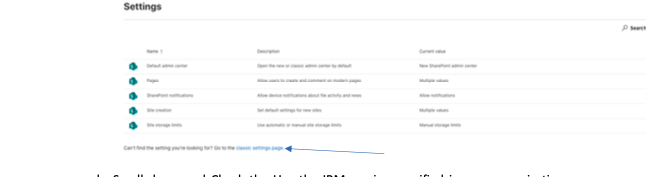
- Scroll down and Check the Use the IRM service specified in your organization checkbox under Information Rights Management (IRM) section and click Refresh IRM Settings button.

- You will have to wait for an hour for the IRM to take effect on your document library.
- Go to SharePoint Administration from Office 365 Administration screen.
- Configure Information Rights Management on the document library that you want to protect
- Go to Library Settings for the document library and click on Information Rights Management under Permissions and Management.

- Check on Restrict Permissions on this library on download. Enter appropriate permission policy title and Policy description

- For configuring more options click on Show Options.
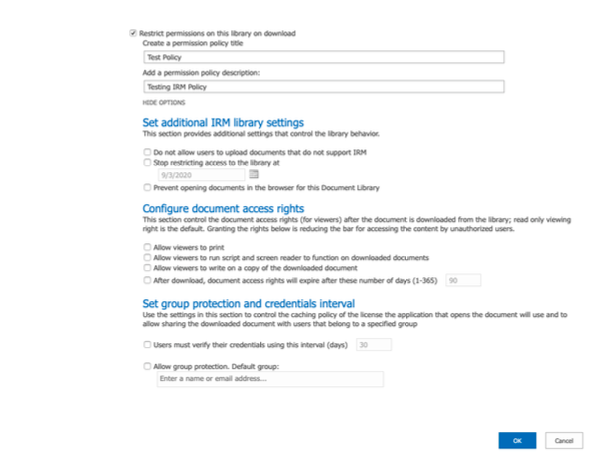
- You can configure this section based on your organization needs.
- Go to Library Settings for the document library and click on Information Rights Management under Permissions and Management.
Now your document library is protected.
Viewing protected files
All Microsoft office files can be viewed in the browser. It will give you a warning saying that you cannot forward this document. If you tried to download the document and open it using the desktop office application please note it will ask you for your O365 Credentials before displaying the document.
For PDF documents on a Windows machine please refer to this link to download PDF viewers that allow to open IRM protected documents https://docs.microsoft.com/en-us/microsoft-365/compliance/sp-compatible-pdf-readers-for-irm?view=o365-worldwide. These applications will ask you to verify your O365 credentials to make sure you have access to the view the PDF document.
